
HDR analysis and metadata for post-production
Analyze HDR. Author the metadata.
Understand the luminance, colour and detail in your finished video. HDRmaster combines video signal analysis, Q/C analyzers and static and dynamic HDR metadata authoring in one Windows application.
One-time purchase · one active workstation
Order via Digistore24 · final total at checkout
For colourists, mastering, Q/C and display testing · Windows · Gamut Rings OFX included
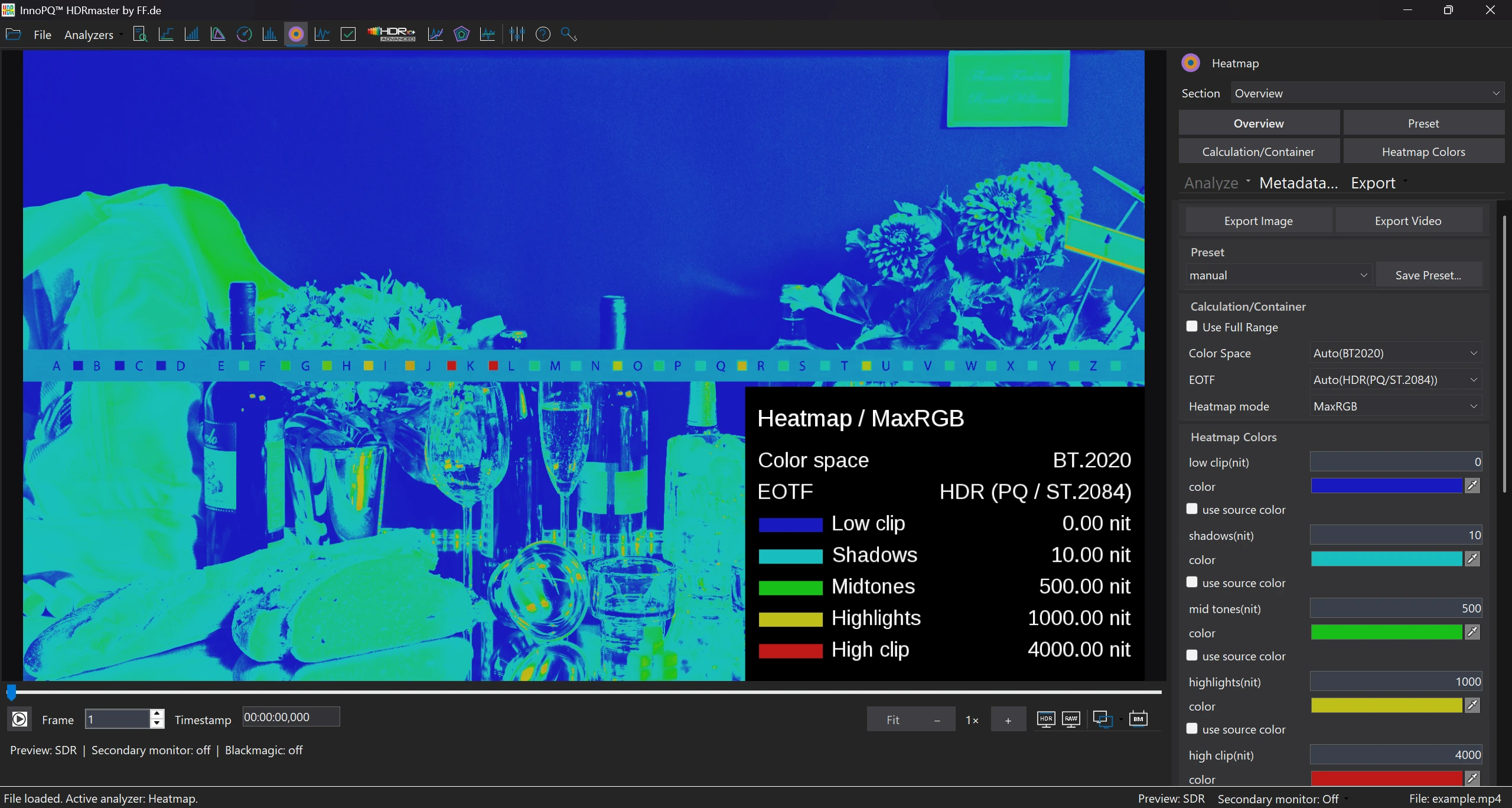
In this screenshot
- 1000 / 4000 nits
- The legend shows the highlight and High Clip thresholds.
- Colour marking
- Bright reflections can be located in the image.
Developed by FF Pictures
Built for day-to-day HDR mastering work.
HDRmaster was developed to check HDR demos, film remasters and test patterns produced by FF Pictures. The team needed to know which levels the finished file contained, how it used the colour gamut and whether its metadata matched the content.
Those tasks still shape the tools: from inspecting a single pixel to calculating scene-based metadata.

InnoPQ™ brings together picture-quality tools and methods developed by FF Pictures. HDRmaster is the software for analysing your video signal and authoring its HDR metadata.
Applications
Choose the analysis your job requires.
From highlight checks to HDR10+ authoring: see which tools to use and what results they provide.
Highlights
Check HDR levels. Locate critical image areas.
See where the signal exceeds your chosen level limits. Heatmaps, frame navigation and pixel values help establish whether a high MaxCLL comes from intended highlights, bright titles or isolated outliers.
Check MaxCLL and highlightsColour
Assess gamut use at different brightness levels.
Check whether colours extend beyond P3 and where they occur in shadows, midtones and highlights. Gamut Rings brings these regions into one view for checking the grade and the finished encode.
Explore Gamut Rings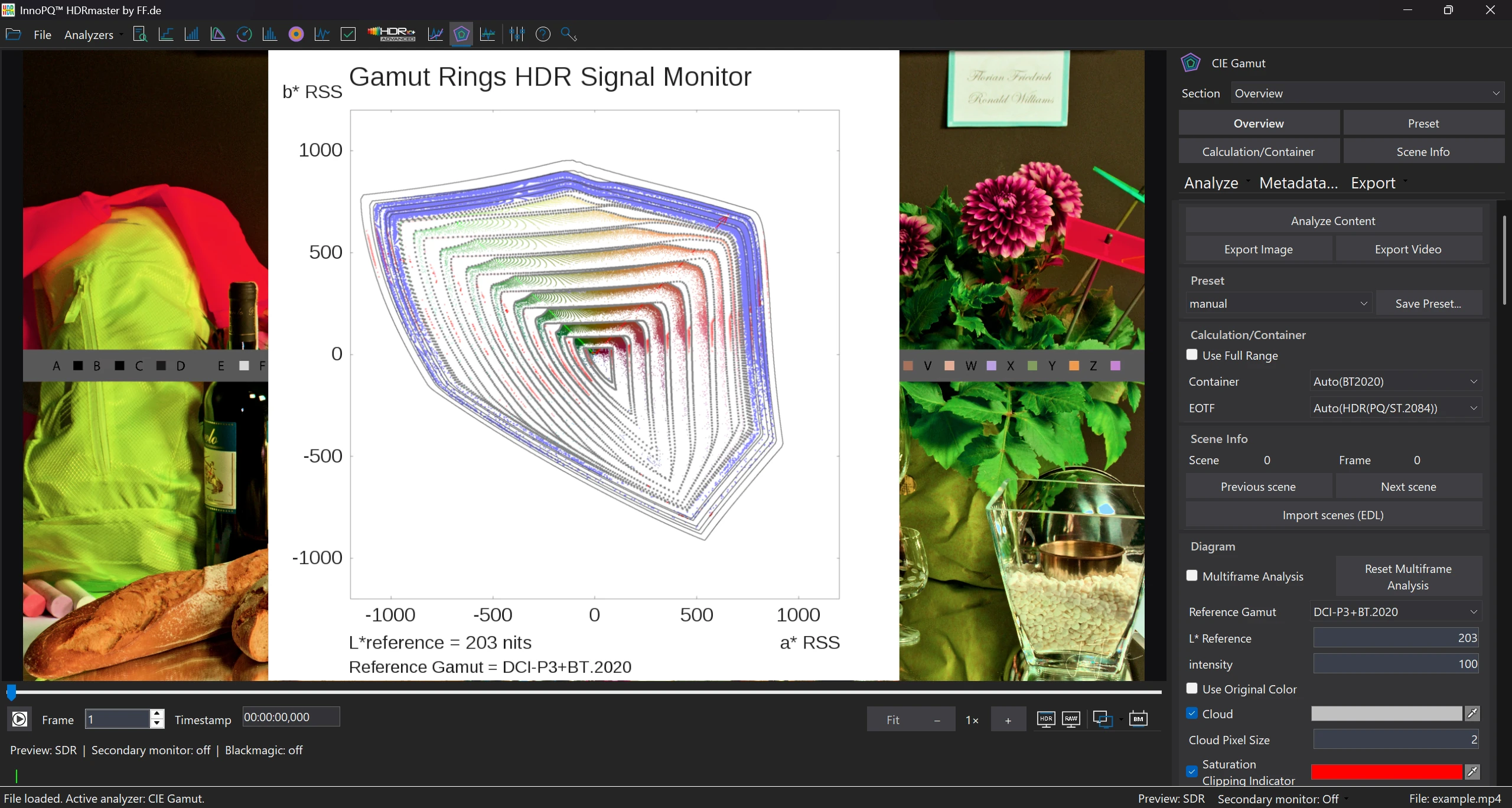
Scenes & metadata
Edit HDR10+ metadata scene by scene.
Detect and refine scene boundaries, calculate content statistics and edit tone-mapping parameters. HDR10+ ADVANCED adds further distribution and colour information to the analysis.
Explore HDR10+ and ADVANCED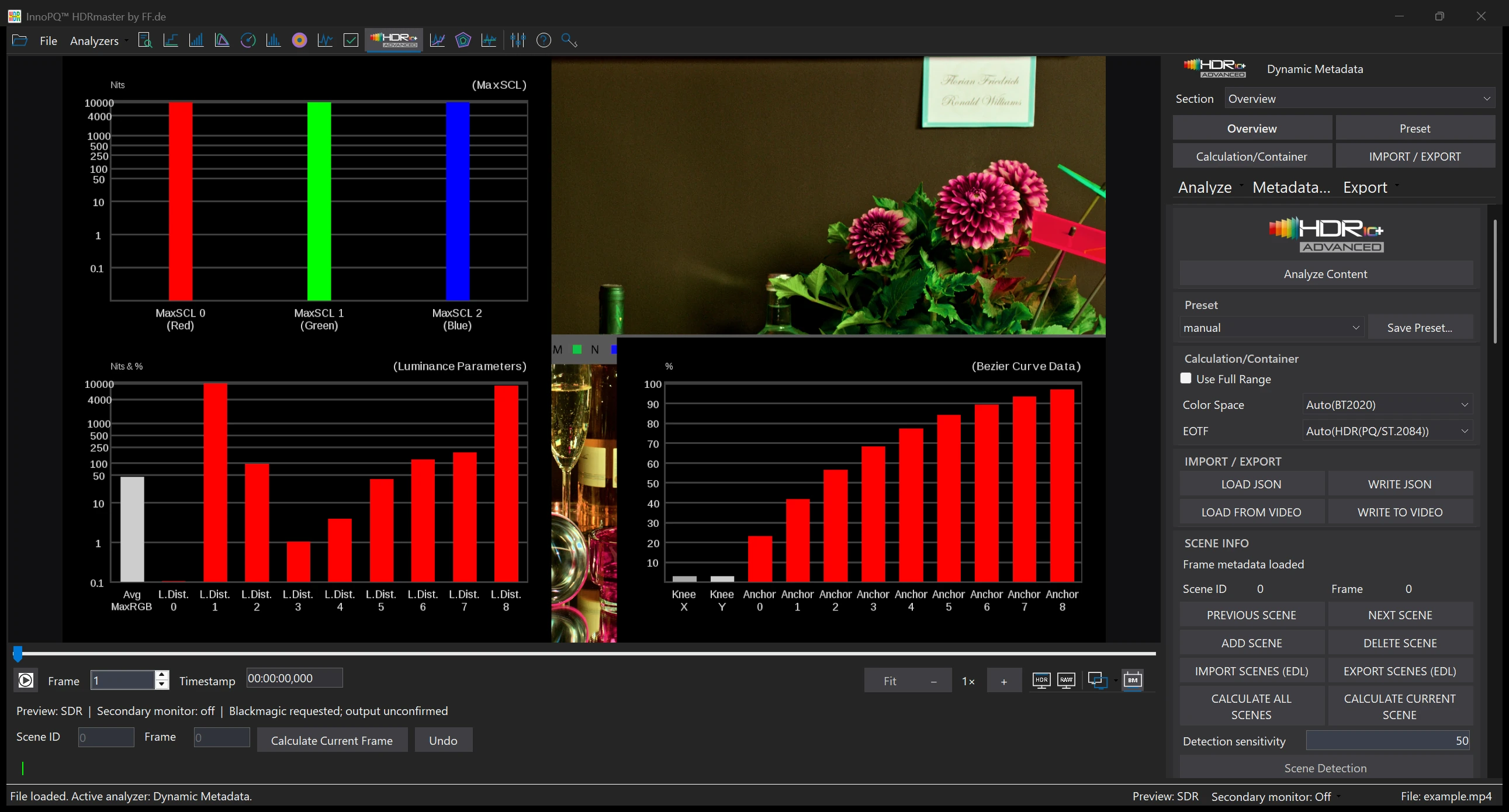
Pixel & profile
Read pixel values. Investigate artefacts.
Examine suspect areas with zoom and numerical colour and brightness readouts. Use the A–B profile to inspect level changes across edges and the histogram to examine the selected image region.
Explore pixel and detail analysis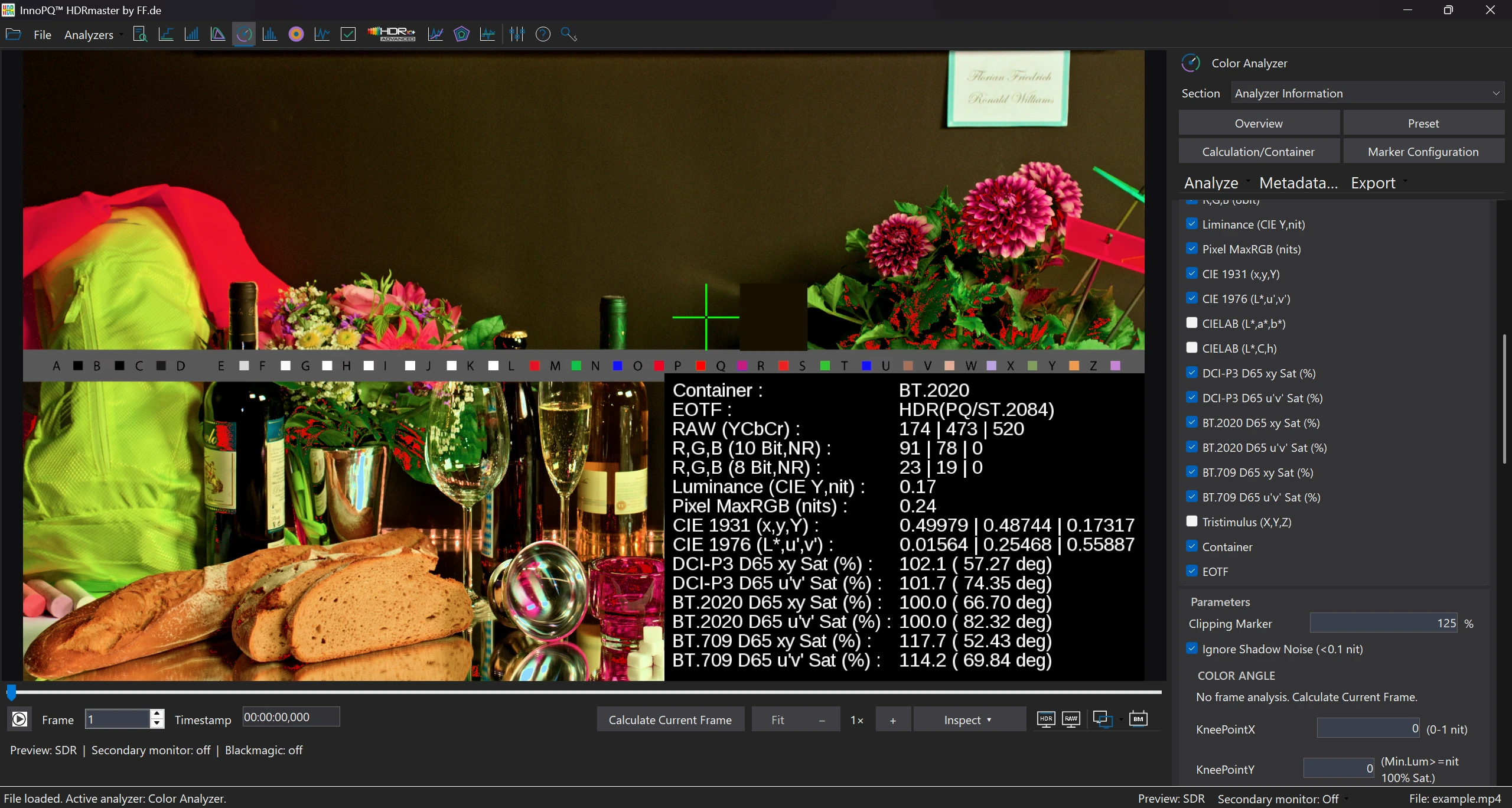
Preview
Review HDR in the application or on an external display.
Switch between RAW and HDR preview in the application window. Use a second Windows HDR monitor or supported Blackmagic hardware to send the signal to an external HDR display.
Set up HDR preview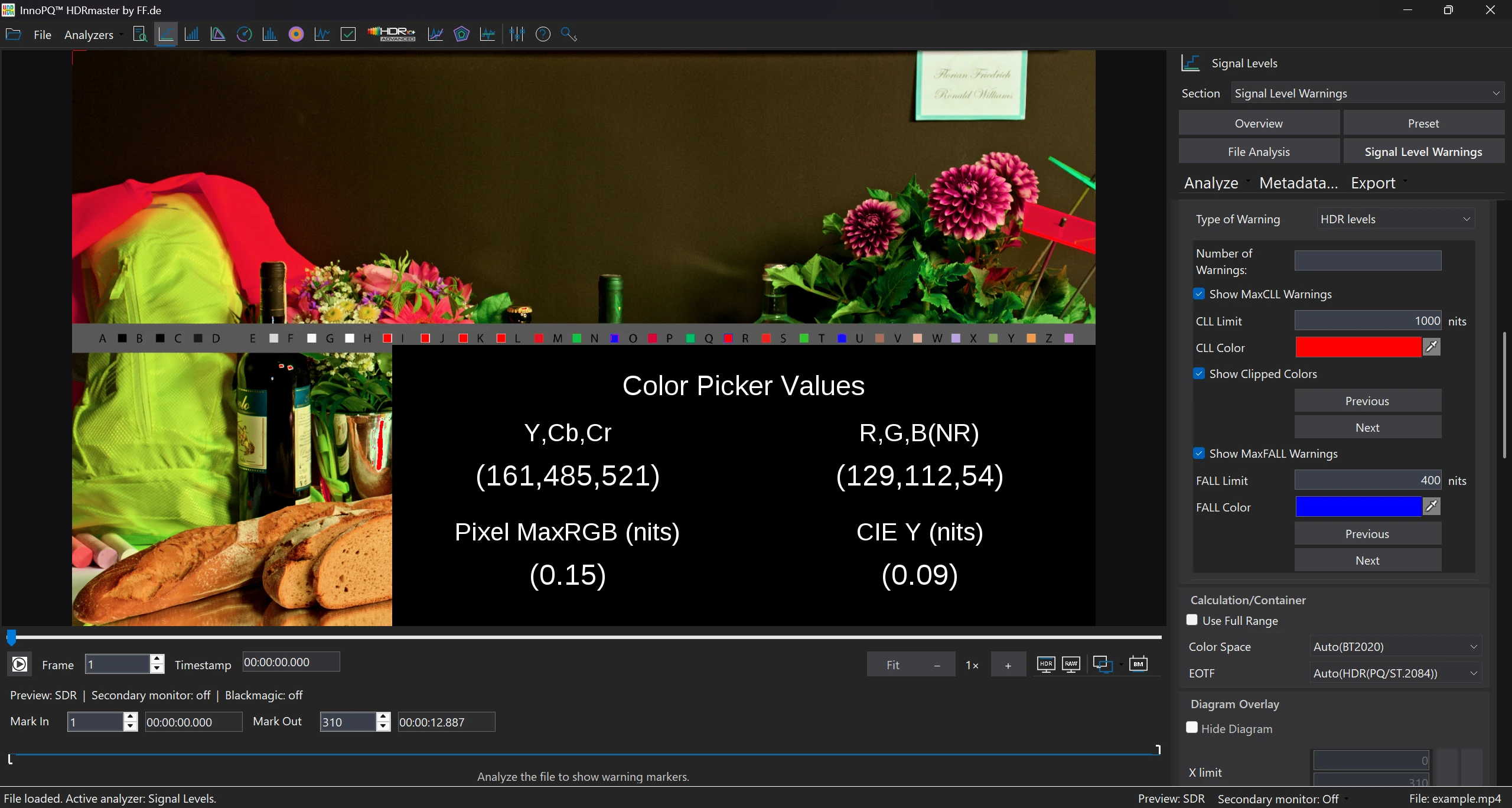
Zoom in the Color Analyzer
Inspect edges and artefacts up close.
Enlarge the relevant area to examine edges, noise and small highlights. This short zoom sequence shows the change between a fitted image and the 2× view.
Explore detail inspectionRecorded zoom steps, edited into a short sequence.
Read the video transcript
The Color Analyzer shows the frame fitted to the window, at 2× after the zoom action, and fitted again. The three recorded views are edited into a short sequence.
Applications
Workflows
Why is my MaxCLL so high?
Locate brightness peaks and assess the influence of outliers.
Scenes, HDR10+ & ADVANCED
Detect scenes, calculate metadata and edit tone-mapping parameters.
Is the colour really beyond P3?
Check P3 and BT.2020 use in shadows, midtones and highlights.
What is happening at this edge?
Inspect pixel values, edge profiles and brightness distribution.
Which HDR preview path should I use?
Preview HDR in the application, on a second monitor or through Blackmagic.
Use your analysis results
Support corrections. Share the findings.
Review level data
Export analysis data as CSV to document affected frames and compare encodes under the same conditions.
Prepare metadata for delivery
Calculate and edit HDR10+ data scene by scene. Use JSON for metadata exchange and EDL for scene boundaries.
Document issues with images
Share relevant frames and analysis results with grading, encoding or QC teams. Pixel positions and values make the affected area easy to identify.
Licence & included tools
HDRmaster with Gamut Rings OFX.
Use HDRmaster to analyse video signals, inspect colour and create static and dynamic HDR metadata. Gamut Rings OFX is included for colour-gamut investigation in DaVinci Resolve.
- Windows software for one active computer per licence
- Transfer activation by deactivating the previous computer
- New versions are currently free of charge
- Order Choose your billing country and payment method in the Digistore24 checkout. Review the final price and purchase terms.
- Download After payment is received, open your delivery link and save the installer and licence key.
- Activate Install on your Windows workstation and activate your licence. Contact FF Pictures for questions about your setup.
799 EUR net
One-time purchase · one active workstation
Applicable taxes and the final total are shown in the Digistore24 checkout for your billing country.
Buy HDRmasterDigistore24
After payment is received, Digistore24 provides the software download and licence key. The checkout currently allows five downloads within three months of payment. Keep the installer, order details and licence key for later use.
You are ordering through Digistore24. The checkout shows availability for your billing country and the applicable purchase and return terms. For multiple licences or company procurement, contact FF Pictures.
Discuss my workflow or company order →Common questions
HDRmaster questions
Is HDRmaster a grading application?
HDRmaster focuses on video-signal analysis, colour inspection and metadata authoring. Use it alongside your creative grading workflow; Gamut Rings OFX also brings colour-gamut investigation into DaVinci Resolve.
Do I need an HDR monitor for analysis?
You do not need an HDR monitor for numerical level, colour or metadata analysis. For visual HDR assessment, use a suitable display and a correctly configured HDR output path.
Can a high peak prove an error?
A small intended highlight, a title or an artefact can all produce a high value. Locate the pixels and inspect the surrounding frames before deciding what the peak means.
Do the website videos show accurate HDR on my display?
The videos demonstrate controls and analysis results. Accurate HDR appearance also depends on the media, browser or player, operating system and display path.
How do I check my source format or company purchase?
Contact FF Pictures with your source format, Windows and GPU configuration, required output path, billing country and licence quantity.